

A video can look clean on a phone and fall apart after upload. The usual reaction is to raise the resolution, but resolution is only one cause of a bad picture. Pixelation may come from a low-quality source, an over-compressed export, repeated re-encoding, a platform’s adaptive stream, or simple enlargement on a bigger display. Each cause needs a different fix. If you diagnose the wrong one, you can create a larger file that preserves the same blocks in greater detail.
In This Article
- Pixelation Has More Than One Cause
- Run the Three-Screen Test
- Fix One: Return to the Best Source
- Fix Two: Clean Compression Before Scaling
- Fix Three: Upscale Only When the Display Needs It
- Fix Four: Export a Better Master
- Fix Five: Judge the Platform Copy at Native Playback
- A Public Example: NASA’s Old Footage Restoration
- Frequently Asked Questions
- The Rule That Saves the Most Time
Pixelation Has More Than One Cause
“Pixelated” is a catch-all word. Macroblocking appears as square patches, often in shadows, smoke, water, confetti, or fast movement. Ringing creates bright or dark outlines around edges after strong compression or sharpening. Softness means detail is missing without obvious blocks. Display scaling happens when a small frame is stretched across a large screen. These problems can appear together, but they do not respond equally to the same setting.
Pause the clip on a difficult frame. Look at hair, fabric, foliage, fine text, and gradients. Blocks suggest bitrate or generation loss. Smooth but blurry detail suggests a weak source or aggressive noise reduction. Jagged edges may come from scaling or interlacing. Identifying the visual signature is faster than trying random filters.
Run the Three-Screen Test
Compare three versions at the same size: the closest source file, your local export, and the uploaded stream. If the source is clean but the export is damaged, fix the edit or export settings. If the export is clean but the stream is damaged, the platform’s transcode or playback quality is the issue. If all three are weak, you need source repair or a new source.
Make the comparison fair. Do not judge the source in a tiny player and the upload full-screen. Pause the same frame, use the same display, and confirm the platform is playing its highest available rendition. Many services begin at a lower adaptive quality while buffering. That temporary stream can look much worse than the final encoded version.
Fix One: Return to the Best Source
The strongest repair is often organizational rather than technical. Find the original camera file, editing master, or first-generation export. A clip downloaded from a messaging app or social platform has already been compressed. Editing that copy and uploading it again compounds the loss. Repeated compression is especially visible in motion because each encoder makes new guesses about detail.
If the project file still exists, relink the best media and export once. Avoid resizing the clip several times across different apps. Keep one high-quality master, then create platform-specific derivatives from that master. This does not guarantee perfection, but it prevents avoidable damage before any enhancement begins.
Fix Two: Clean Compression Before Scaling
When the best available file is still noisy or blocky, reduce those artifacts before asking the software to create more pixels. A controlled enhancement pass can suppress grain, soften block boundaries, and recover edge definition. The goal is not a waxy, over-smoothed image. Skin, fabric, and natural texture should remain believable when the clip moves.
A browser-based Video Enhancer AI is one way to test the repair without requiring a local GPU. UniFab’s page states that the online service runs on remote GPUs, accepts formats including MP4, AVI, and MOV, and reduces noise and compression artifacts. Its online scaling is capped at 2× and exports MP4 by default. Start with a short representative section, especially one containing motion and fine detail, then compare it with the untouched source at the same size.
Fix Three: Upscale Only When the Display Needs It
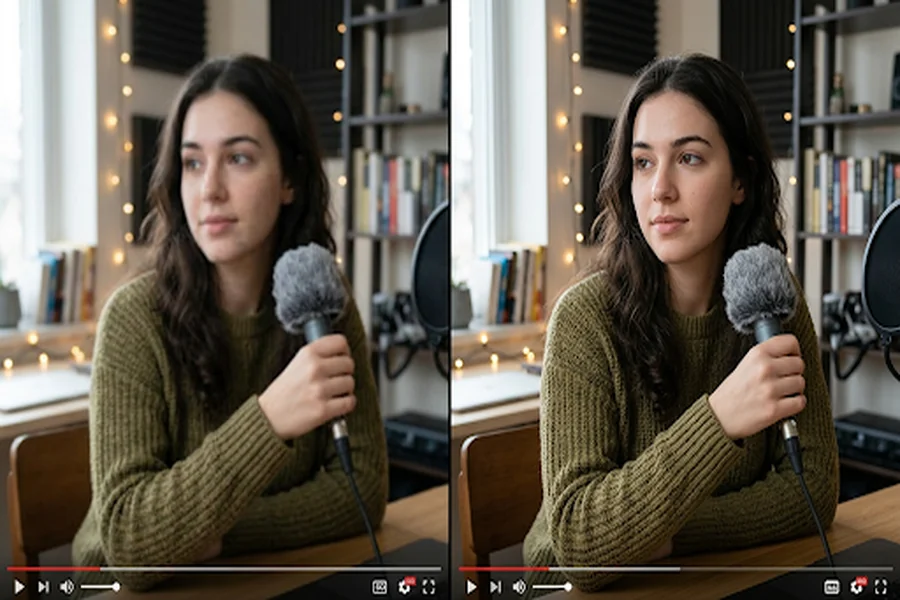
Upscaling is useful when a reasonably clean small frame must fill a larger delivery size. A 720p source headed for a 1440p layout or a 1080p master needed for a 4K display is a logical candidate. A severely blocked 360p clip is not transformed into native 4K simply because the export says 2160p. The missing information remains missing, and artificial detail can become unstable from frame to frame.
For larger or more specialized jobs, an AI Video Upscaler can offer local and cloud paths. UniFab lists desktop output up to 4K, 8K, and 16K, with models for general footage, texture, anime, and film/television material. FabCloud is limited to 4K and currently offers the Equinox model, while desktop processing requires compatible hardware and downloaded models. The page’s own benchmark notes that processing time depends on hardware, which is a useful reminder that high-resolution output has a real compute cost.
Fix Four: Export a Better Master
There is no single magic bitrate for every video. A quiet talking-head clip compresses more easily than water, crowds, smoke, game footage, or handheld motion. Choose dimensions that match the source and destination, keep the original frame rate unless you have a reason to change it, and avoid an unnecessarily low bitrate. If the editor offers a quality-based mode, use a high-quality master rather than targeting the smallest possible file.
Do not sharpen aggressively during export if enhancement already added edge definition. Two sharpening passes create halos. Keep audio settings sensible, but remember that reducing audio from an already modest track rarely saves enough space to justify damaging it. The master should be stable and clean; platform compression will create the smaller streaming copies.
Fix Five: Judge the Platform Copy at Native Playback
Upload the best master the platform accepts, then wait for higher-quality renditions to finish processing. Play the result at the intended size and manually select the highest quality for inspection. A 4K upload may take longer to reach 4K playback than its low-resolution preview takes to appear. Do not declare failure based on the first minute after publishing.
Watch the areas that challenged the encoder: fast pans, gradients, confetti, foliage, shadows, and small text. If the platform copy fails while the local master remains clean, changing the master’s resolution, bitrate, or noise level may help the transcode. If both are weak, return to the source rather than repeatedly uploading variations of the same damaged export.
A Public Example: NASA’s Old Footage Restoration
NASA’s publicly available Apollo footage shows the value of working from the best surviving source. Restoration projects have rescanned and cleaned archival material so modern audiences can see it more clearly, while the original historical record remains the reference. The process does not turn old capture technology into a modern camera, and it does not claim to reveal facts that were never recorded.
That is the correct expectation for personal and creator footage too. Preserve the original, create a derivative, document what changed, and judge improvement against the same frame. The case is verifiable public restoration; it is not a claim that UniFab or another named tool produced NASA’s result.
Frequently Asked Questions
Can pixelation be removed completely?
Sometimes artifacts can be reduced substantially, but severe blocking means information was discarded. Enhancement can reconstruct plausible texture, not recover every original pixel with certainty.
Should I raise bitrate or resolution first?
Diagnose the problem first. Raise bitrate when the export introduced blocks. Upscale when a clean smaller frame needs a larger delivery size. Doing both blindly can waste time and storage.
Why does the uploaded version look worse than my file?
Platforms create their own streaming renditions. A low adaptive stream, unfinished high-quality transcode, or difficult motion can make the hosted copy look worse than the master.
Is exporting in 4K always better?
No. A 4K container does not guarantee 4K detail. Use higher resolution when the source and destination justify it, and prioritize a clean master over an inflated frame size.
How many times should I enhance a clip?
Ideally once. Work from the best source, test settings on a short section, make one repaired master, and create delivery copies from that master.
Can AI make text in a blurry video readable?
It may sharpen edges, but it cannot reliably establish characters that were never captured. Do not use reconstructed text as evidence or assume it is accurate.
The Rule That Saves the Most Time
Diagnose before you upscale. Compare source, export, and upload at the same size. Return to the best master, clean artifacts before scaling, upscale only for a real delivery need, and export once at sensible quality. That sequence fixes more videos than chasing the biggest resolution number, and it keeps a recoverable source available when today’s tool reaches its limit.